
FutFilters setup guide
Install, panels and settings, one screenshot per step.
1. Getting started
Two helpers work together in the EA FC Web App: the FutFilters panel (snipe filters, Auto Search, the autobuyer log) and FF Webapp Extra (prices on cards, one-click listing, Transfer List and Club tools).
- Create or sign in to your account on futfilters.com and copy your personal API code from "My Account" -> "API code".
- Install the Chrome extension from the Chrome Web Store (see the Downloads page), or the userscript with Tampermonkey.
- Open the EA FC Web App, sign in to EA as usual. The two icons "FutFilters" and "FF Webapp Extra" appear in the left menu.
- Open the FutFilters panel, then the gear icon (Settings) and paste your API code once ("API code" -> click to edit -> Save).
- Pick a filter in the panel and click it: the Transfer Market search form is filled in for you.
2. The FutFilters panel
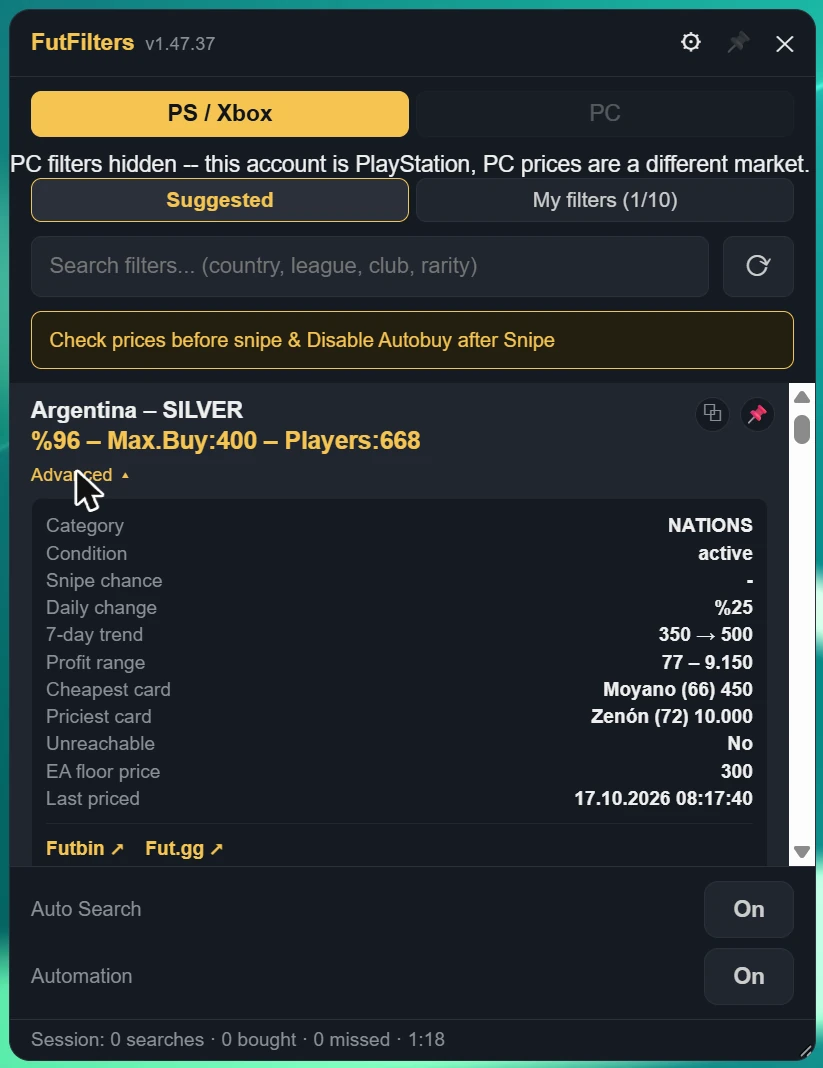
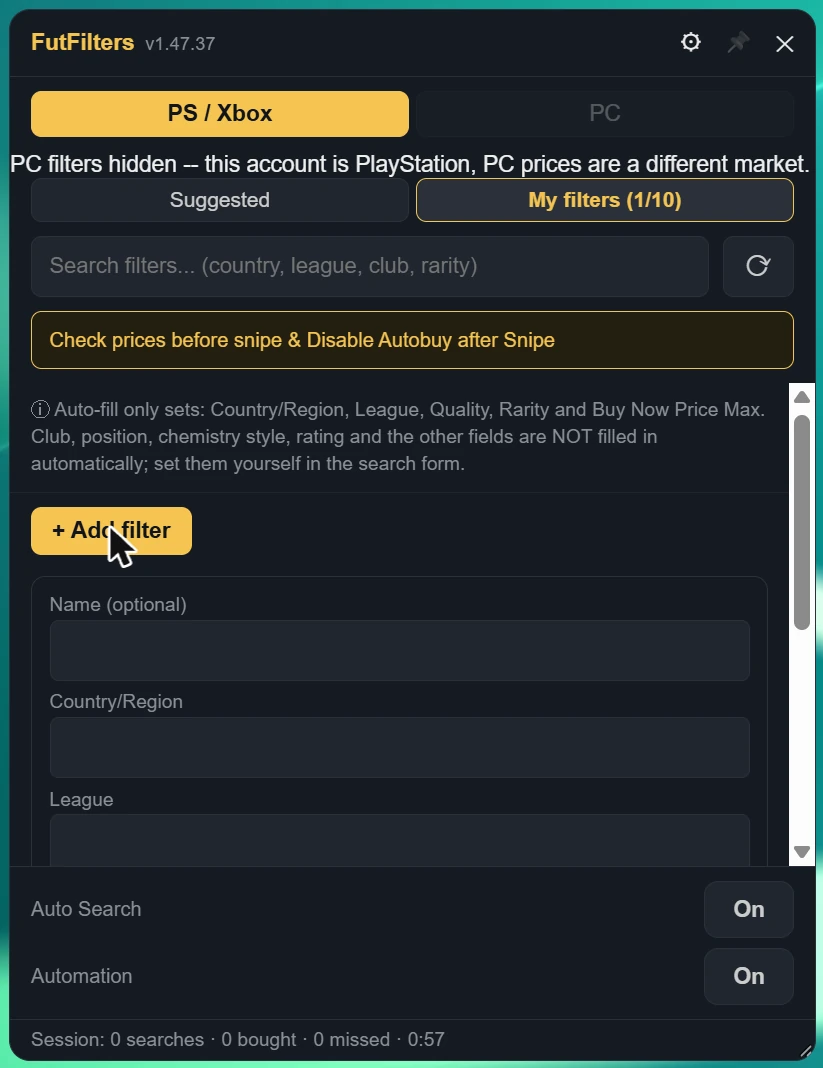
The panel lists the filters we have priced, shows how profitable each one is, and fills in the Transfer Market search when you click one.
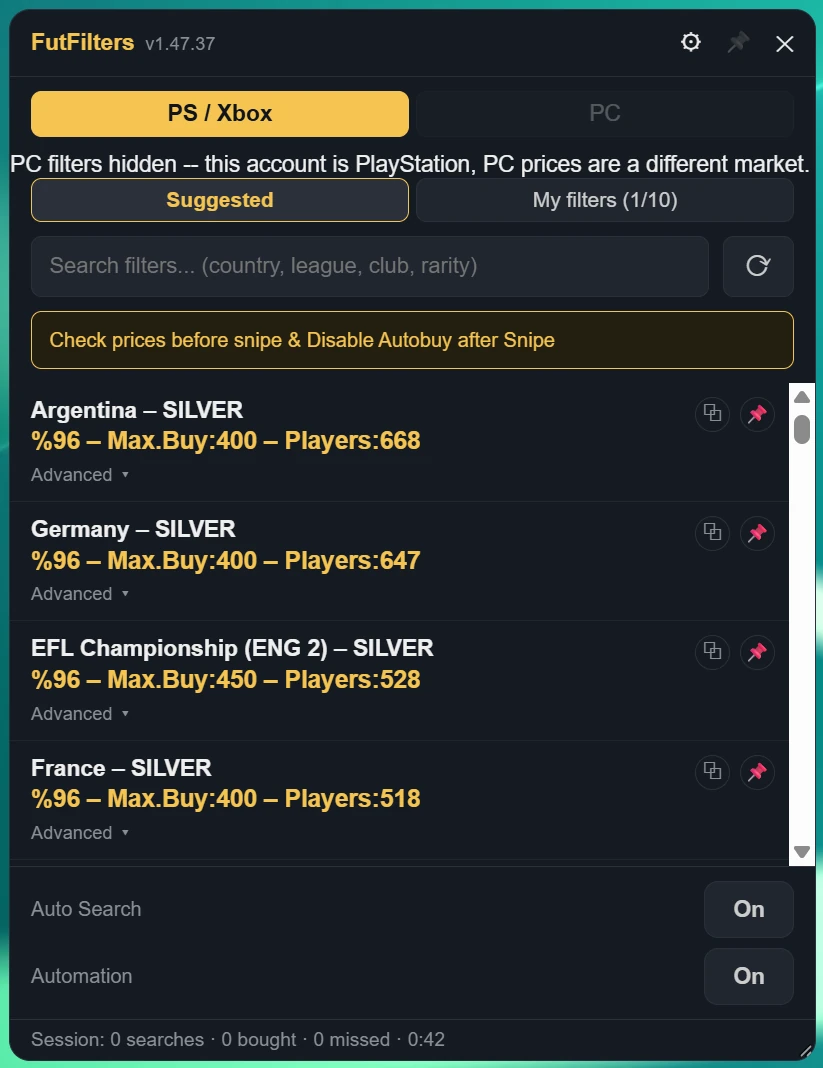
- PS / Xbox and PC are separate markets. If you see "PC filters hidden", your account is PlayStation / Xbox and PC prices are a different market, so only the matching filters are shown.
- Search box: type a country, league, club or rarity to narrow the list; the refresh button reloads it.
- Auto Search and Automation switches sit at the bottom of the panel; the line under them is the current session (searches, bought, missed, time).
- The pin icon in the header keeps the panel open when you click elsewhere on the page; drag the bottom-right corner to resize it.
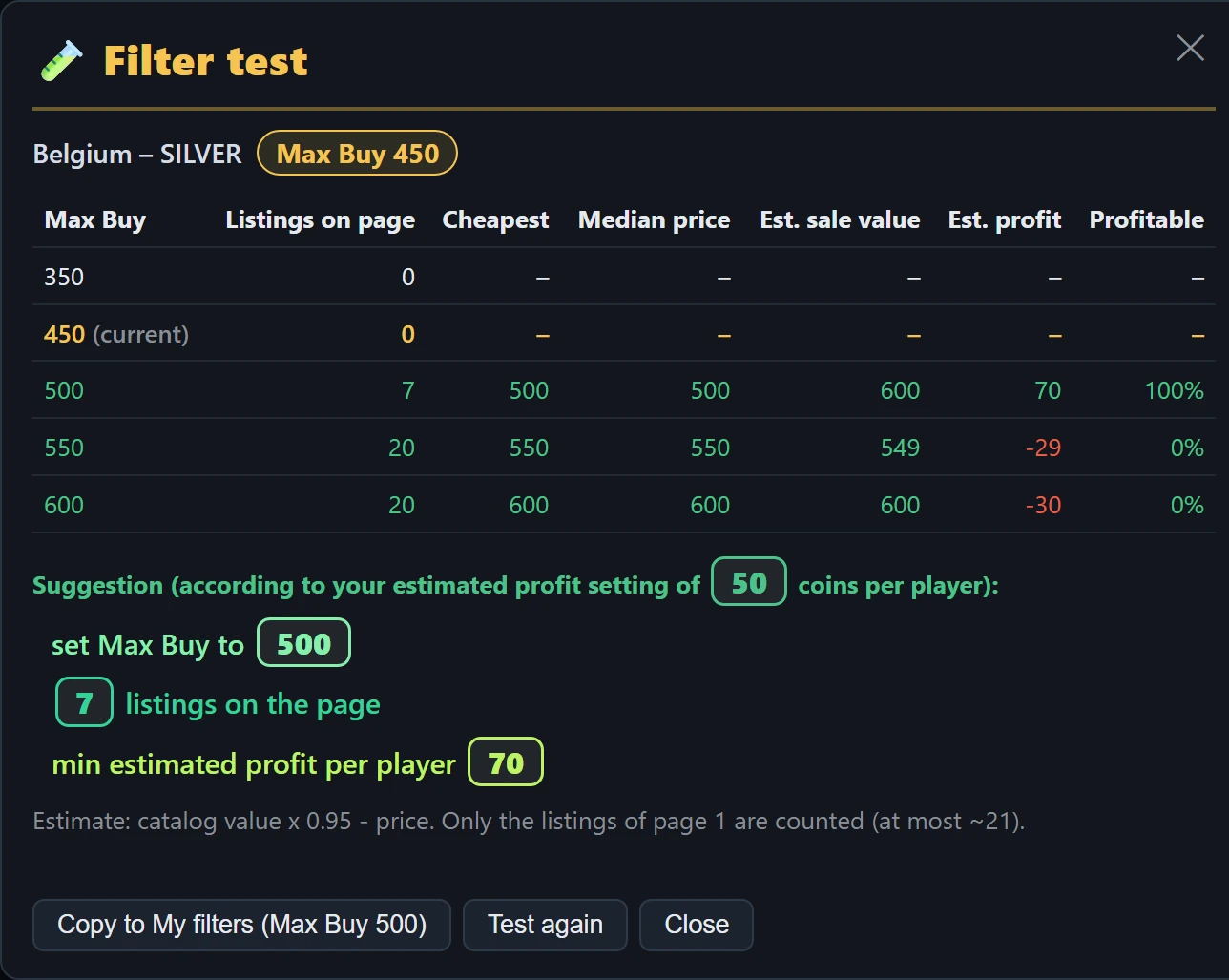
- The suggestion under the table names a better Max Buy when the market has moved (for example when no listing exists at the current price, but enough profitable ones a step higher), or says to keep it, or to leave the filter for now.
- "Copy to My filters" adds the filter to My filters at the suggested Max Buy. When you test a filter of My filters, the button changes its Max Buy instead.
- When a test finishes, its result is sent to FutFilters as anonymous market data (you can switch this off in Settings). When several accounts report that a filter's Max Buy no longer fits the market, FutFilters adjusts that filter's price for 24 hours (a 5-10% discount instead of 10%); an adjusted filter shows a gear icon next to its Max Buy.
- The test stops Auto Search and blocks every automatic buying option while it runs (Auto-click Buy Now, Auto-click Ok, Multi-buy and the Webapp Extra auto-buy switches), so nothing is ever bought. Start Auto Search again when you are done. Do not run many tests in a row: every test is about 8 searches.
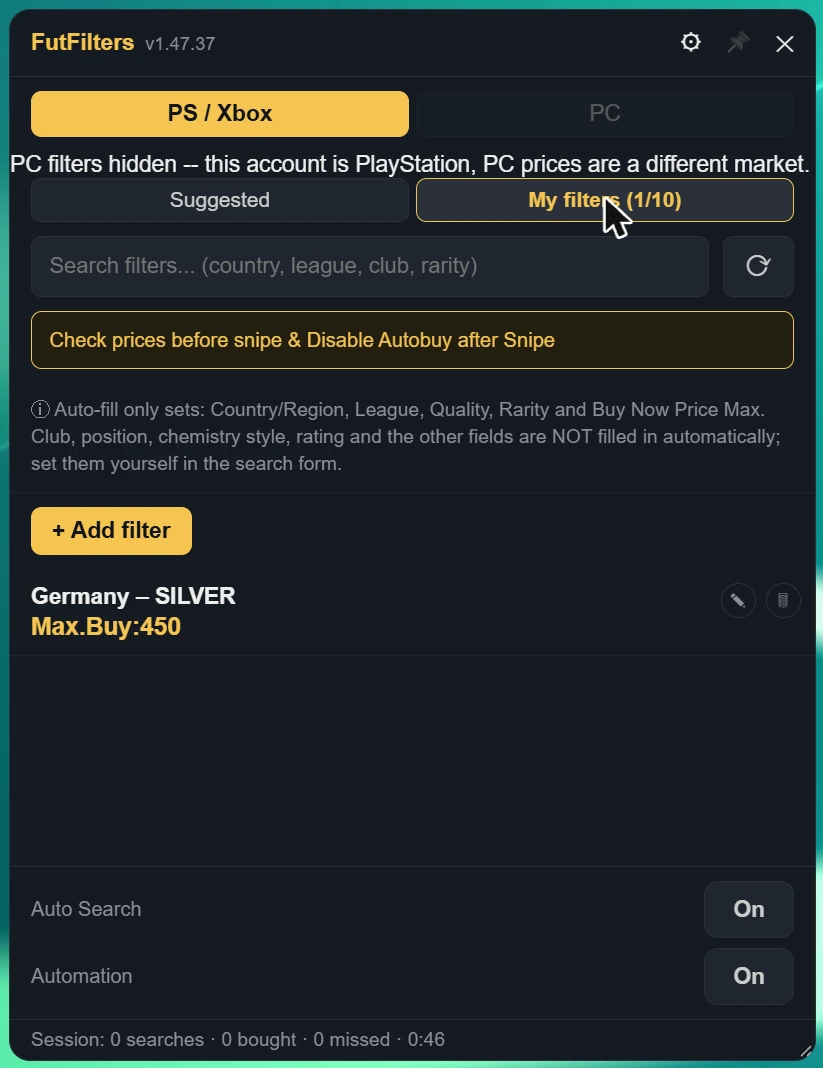
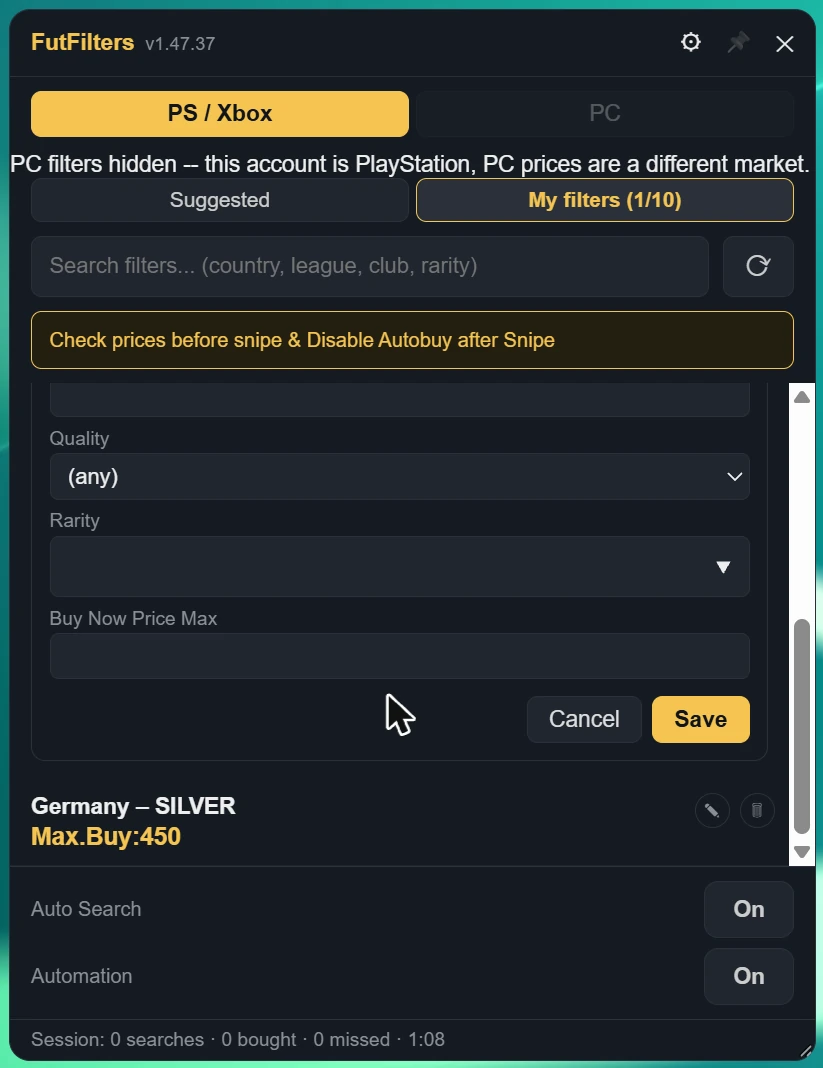
Auto-fill only sets: Country/Region, League, Quality, Rarity, Position and Buy Now Price Max. Club, chemistry style, rating and the other fields are NOT filled in automatically; set them yourself in the search form.
3. FutFilters Settings
Click the gear icon in the panel header. Hover (i) next to a setting in the panel to read the same description as below.
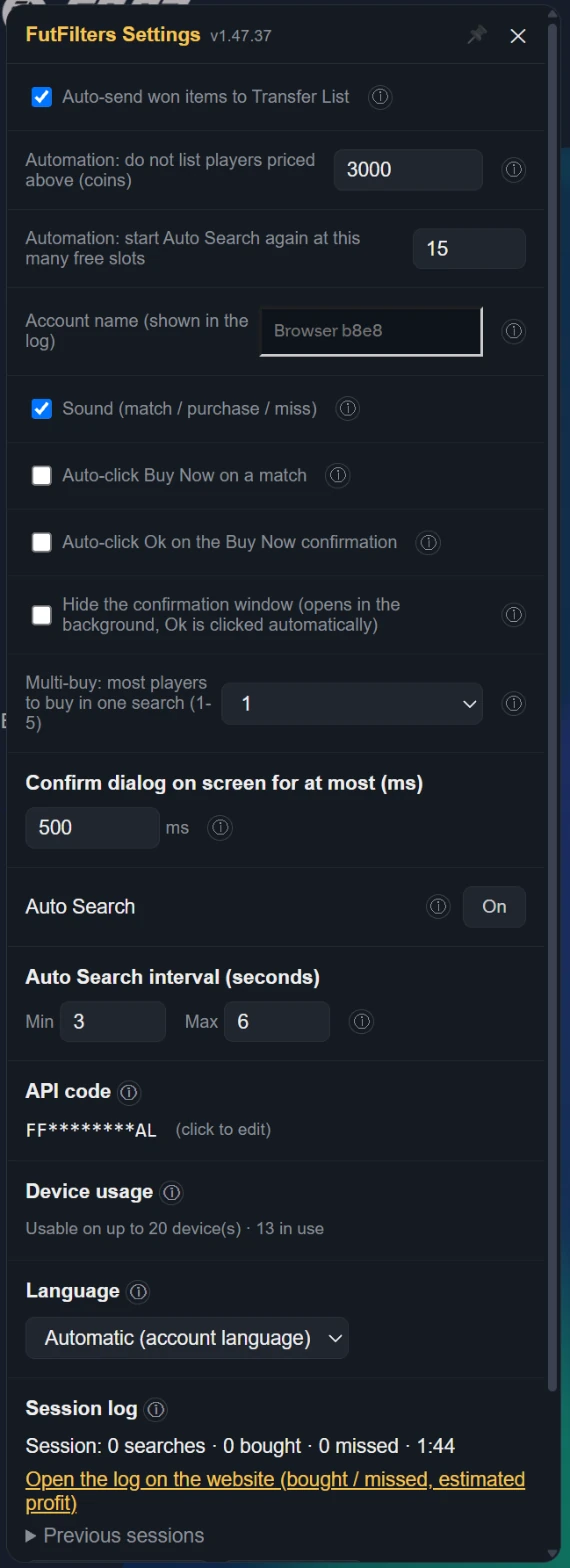
| Auto-send won items to Transfer List | When a purchased/won item shows up on the Club > Unassigned page or the Search Results page, automatically clicks "Send to Transfer List". Only relocates the item to the Transfer List tab -- it does not list it for sale, set a price, or move any coins; only runs while one of those pages is open. Default: on. EA caps the Unassigned pile at 5 items and refuses new purchases when it is full, so on other pages too (Transfers, Transfer List, Club...) purchased items are sent without leaving the page (if the Transfer List is full it retries when space frees). If that method stops working it falls back to opening the Home "Unassigned Items" tile. |
|---|---|
| Automation: do not list players priced above (coins) | WHEN ON: when the Transfer List is 90% full Auto Search stops and the players in it are listed one by one at the FutFilters price for 1 hour (with the Relist % of FF Webapp Extra, +5% if you never set one). When listing is done the sales are checked periodically and sold items are cleared; when the number of free slots set below (default 15) is reached Auto Search starts again with the same filter. WARNING: this is full automation, it lists without anyone looking and is a risky way to use the helper; be careful before leaving it unattended. Players priced above the limit below are never listed automatically. |
| Automation: start Auto Search again at this many free slots | Auto Search starts again, with the same filter, once this many Transfer List slots are free (default 15). |
| Account name (shown in the log) | Shown next to this browser's events and warnings in the Autobuyer log, so you can tell your accounts apart when you run several. Left empty it uses the club name shown in the Web App (or a short code for this browser if that cannot be read). The name is sent to futfilters.com with the log events; if you prefer, type a short nickname instead. |
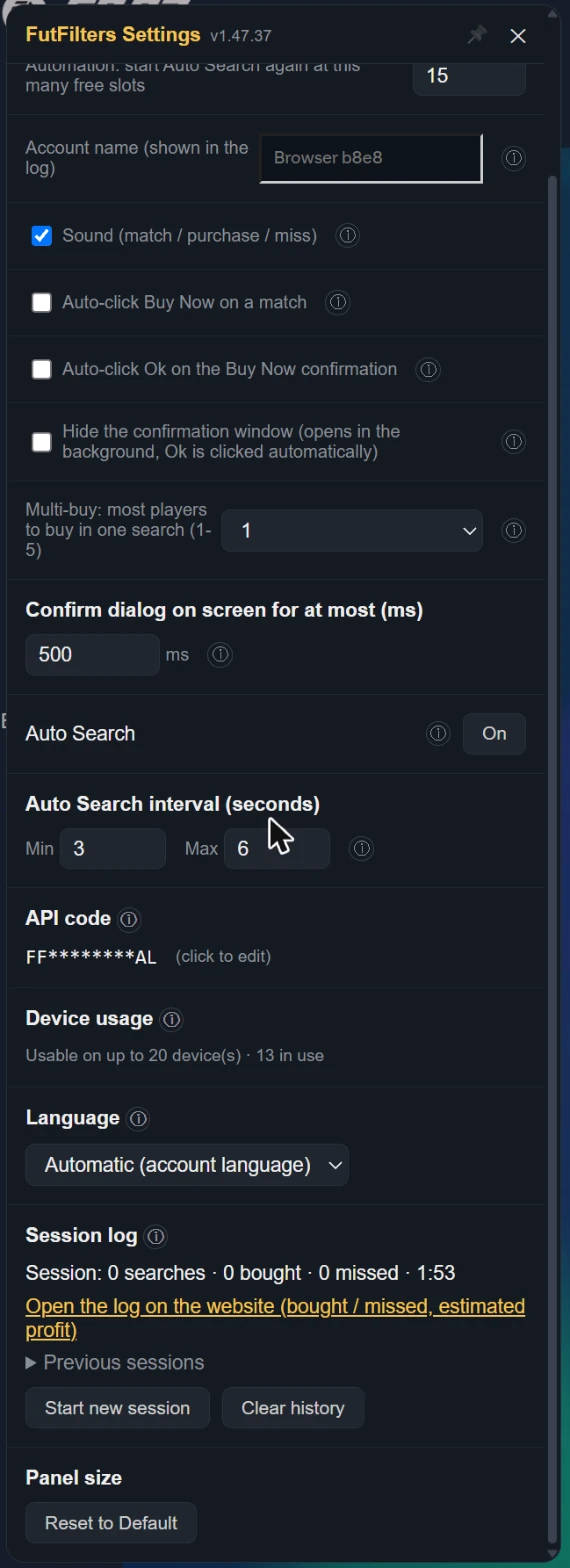
| Sound (match / purchase / miss) | A beep when a listing matches, a "cha-ching" on a successful purchase, a low "thud" on a missed player, and the alert when Auto Search stops. Turn it off for no sound at all. Default: on. |
| When EA keeps answering "Too many actions": pause Auto Search for (minutes, 0 = off) | When too many actions are taken EA answers "Too many actions have been taken…" and switches the Transfer Market off for a while; an Auto Search that keeps going only wastes time and is risky for the account. WHEN ON: if that message is seen more than 5 times within the last 20 searches, Auto Search stops for the number of minutes set here and then carries on by itself with the same filter. 0 = off. Works on an English EA account. |
| Skip cards with an estimated profit below (coins, 0 = off) | Estimated profit = the card's catalog value x 0.95 - price. A low-profit card takes a Transfer List slot for an hour. 0 = buy every match (as before). Cards the catalog does not know are still bought. While on, a card whose value is not cached yet can delay the click by up to 0.45 s. |
| Send filter test results to FutFilters | When a test finishes, its result (listings, prices, estimated profit, suggestion) is sent to FutFilters as anonymous market data. When several accounts report that a filter's Max Buy no longer fits the market, the server adjusts that filter's price (a 5-10% discount) for 24 hours; an adjusted filter shows a ⚙ next to it. |
| Auto-click Buy Now on a match | When the watch finds a match, automatically selects the row and clicks "Buy Now for X" -- this opens EA's own "Get Now" confirmation dialog. If "Auto-confirm" below is off, the dialog stays yours to act on. |
|---|---|
| Auto-click Ok on the Buy Now confirmation | WHEN ON, also clicks Ok in the "Get Now" confirmation dialog and completes the purchase. This is full automation -- high EA account ban risk. Default: off. Only meaningful while auto Buy Now is on. |
| Hide the confirmation window (opens in the background, Ok is clicked automatically) | The Buy Now confirmation window (Cancel / Ok) is not shown on screen; EA still opens it and the script clicks Ok in the background. Only works while "Auto-click Ok on the Buy Now confirmation" is on and only for the helper's own attempt: windows you open yourself stay visible. A hidden window that gets stuck is closed with Cancel. Default: off. |
| Multi-buy: most players to buy in one search (1-5) | 1 (default): if a search shows several matches only the most profitable one is bought (profit by the FutFilters price: value x 0.95 - price). 2-5: up to that many players are bought in that search, one after another, most profitable first. The number counts Buy Now attempts and starts again with every new search; with a short Auto Search interval you may not get through all of them before the next search comes. WARNING: multi-buy is a risky way to use the helper; coins are spent on several players at once, you can exceed your budget and fill the Unassigned pile (5 items). Be careful when you use it. |
| Confirm dialog on screen for at most (ms) | Only applies while "Auto-click Ok" is ON. If the "Get Now" dialog is still open this long after it first appeared (the Ok click did not register) it is closed with Cancel, so it cannot sit there and collide with the next search. Default: 500 ms. With Auto-click Ok off the dialog is always shown and left to you. |
| Auto Search | You can also turn Auto Search on/off from here -- does nothing while watch is off. Default: off. |
| Auto Search interval (seconds) | Each cycle waits a random amount of time between these two values -- deliberately variable, since a fixed interval is the most obvious bot tell there is. |
| API code | Changing the code switches to a different futfilters.com account/code -- filters and preferences reload accordingly. |
| Device usage | Switching to a different computer? You can reset it from your futfilters.com panel. |
| Language | The panel's language. "Automatic" follows the language on your futfilters.com account; pin it here to match your EA Web App's language -- no need to visit the website. |
| Session log | Every time you start Auto Search a new session begins (there is also one from when you open the page; you can press "Start new session" yourself too). Stopping Auto Search does not end it: it keeps counting until the next one starts. Searches counts manual and automatic Search clicks; bought counts purchased items that land in the Unassigned pile. The last 30 sessions are kept in this browser. |
4. FF Webapp Extra settings
Open the "FF Webapp Extra" icon in the left menu. Every feature has its own switch and an (i) button with the description. Switch off what you do not use.
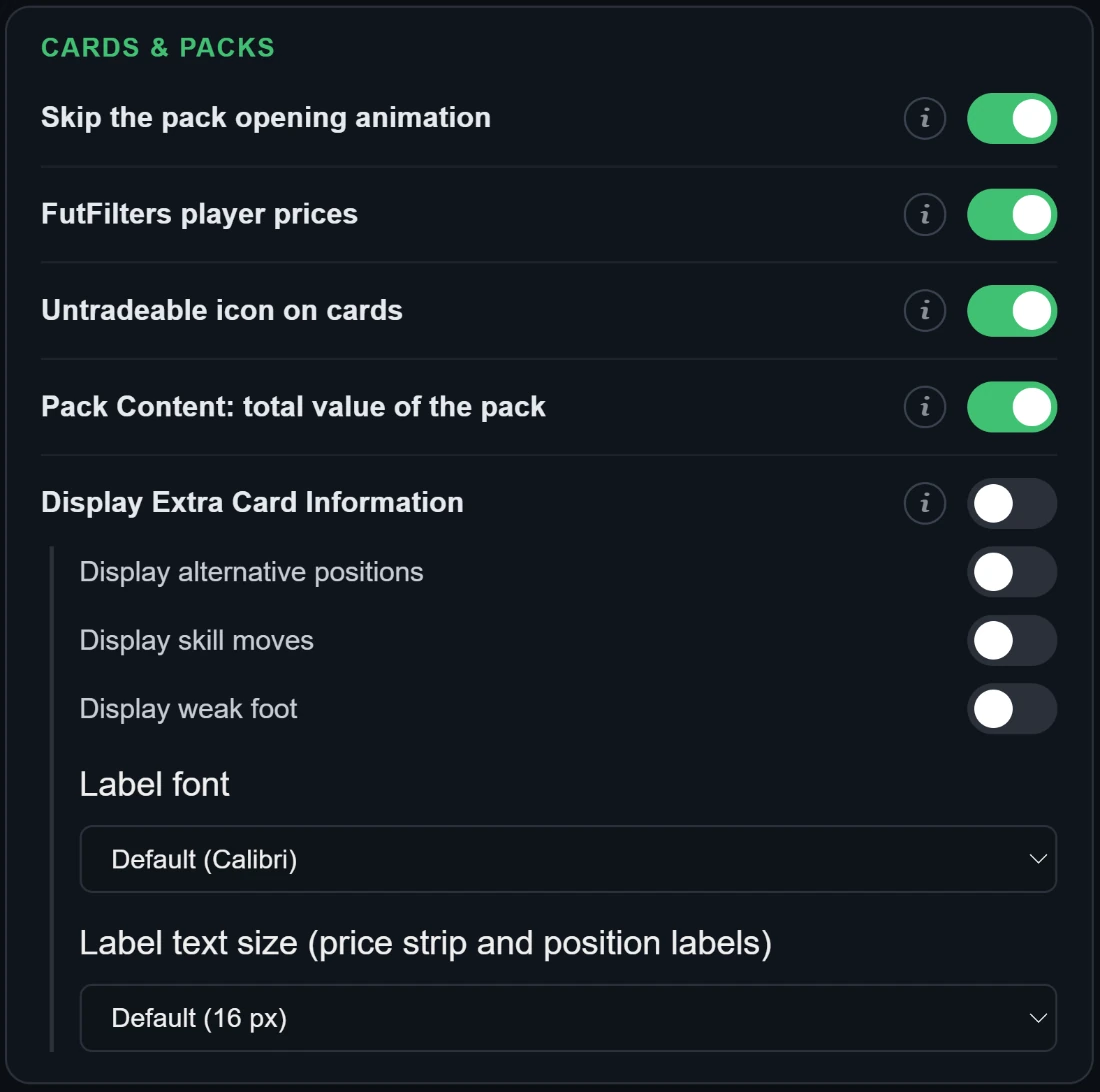
- Skip the pack opening animation
- Hides the confetti/fireworks animation played while a pack opens and jumps straight to the result.
- FutFilters player prices
- Adds the last price from the futfilters.com player database on top of every player card. A PlayStation / Xbox account shows only the PS price, a PC account only the PC price (green); if the platform cannot be read, both are shown. A faded price is older than 2 days; hover for the exact value, the EA floor and the date. It only appears on lists loaded after the script is switched on. Chemistry Styles, Managers and Manager Leagues get their price too (lowest listing, from fut.gg).
- Untradeable icon on cards
- Puts a clear "cannot be traded" icon on the top-left corner of every untradeable player and item card (club, Unassigned, squads, packs), so you can see them at a glance. Default: on.
- Pack Content: total value of the pack
- In the Store's "Pack Content" window (a pack you preview or open) this adds a line at the bottom with the total value of the pack: players at FutFilters prices (the PS / PC market of your account); consumables, managers and other items, and players without a price, at their Quick Sell value. The price on every card comes from "FutFilters player prices", so keep that one on too. If the pack is worth more than its coin price, a green line says it is worth opening (values are before EA's 5% selling tax). A pack in the Store list that you have already previewed shows the same value above its "View Pack" button. Chemistry Styles in a pack are valued at their market price too. Coins items count at face value. A pack inside the pack (for example a Silver or Gold pack) counts at its Store coin price, not at an expected return.
- Display Extra Card Information
- Adds small labels on the right edge of the card (information EA does not show by default).
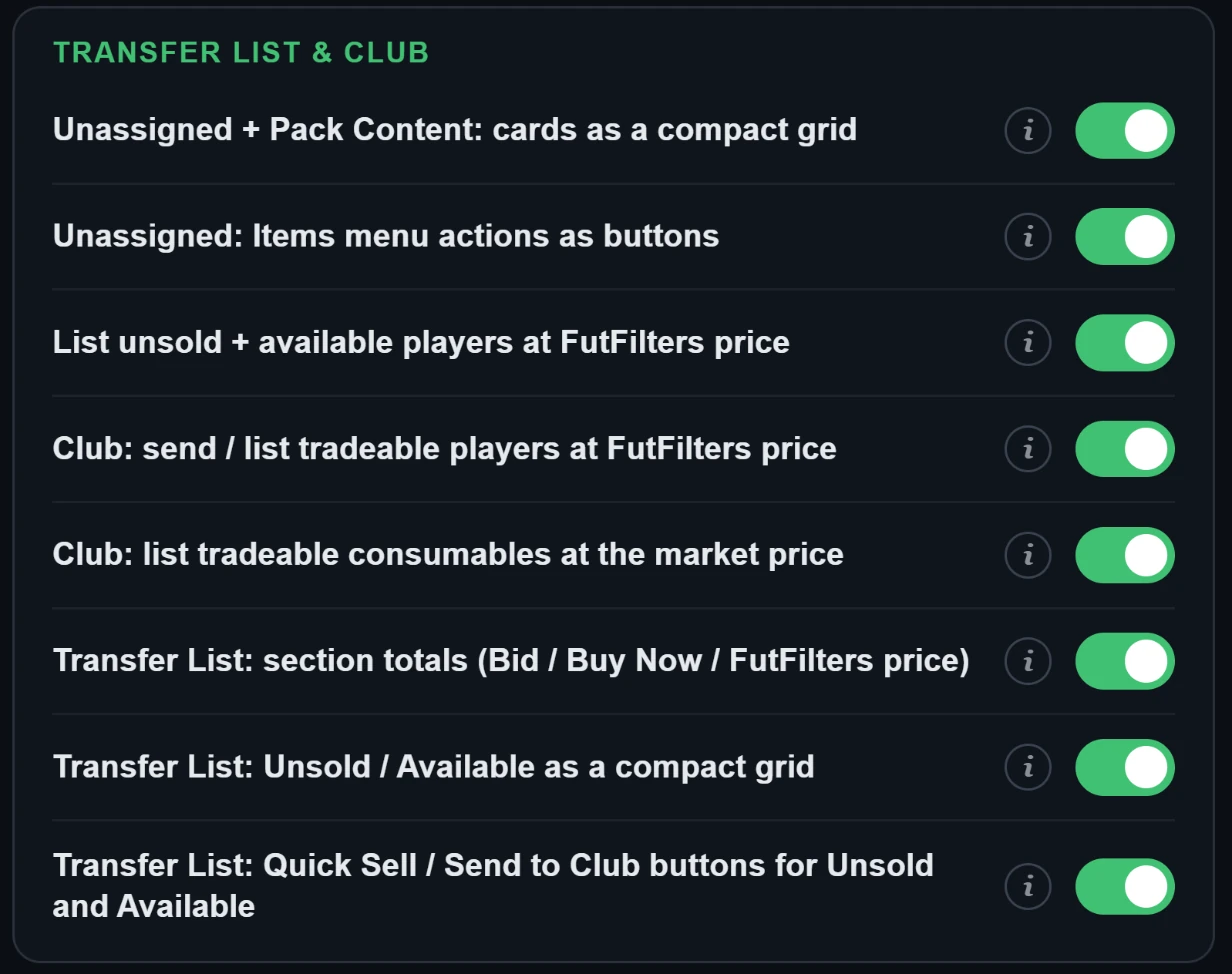
- Unassigned + Pack Content: cards as a compact grid
- On the Unassigned page (the cards you just got from a pack) and in the Store's Pack Content window (preview or opened packs) shows the cards with just the item's name underneath, five side by side and wrapping to the next row, without stats and arrows. Click a card to select it as usual. Default: on.
- Unassigned: Items menu actions as buttons
- On the Unassigned page, puts the actions of the Items menu (the three dots) as buttons next to the "Items" title: Store all in Club, Send to Transfer List and Quick Sell with the total value. Quick Sell still asks EA's own confirmation first. Default: on. Two more buttons move only the PLAYERS (not consumables or other items) to the club or the Transfer List. Tradeable players waiting in Duplicates are included in the Transfer List button.
- List unsold + available players at FutFilters price
- Adds a button on the Transfer List page for players that did not sell or are not listed: it lists each player one by one at the price in the futfilters.com player database, adjusted by the percentage you choose (-20 … +20, default +5) and rounded to EA's price step. Nothing is listed until you press "List selected"; a table is shown first. The same button also appears on the Unassigned page (after opening packs) for the tradeable players waiting there.
- Club: send / list tradeable players at FutFilters price
- Adds a button on My Club > Players: it scans the club for tradeable players and shows them in a table with the FutFilters price (selectable per player, none selected by default). It sends the selected players to the Transfer List in bulk, or lists them straight from the club at the FutFilters price (with your percentage).
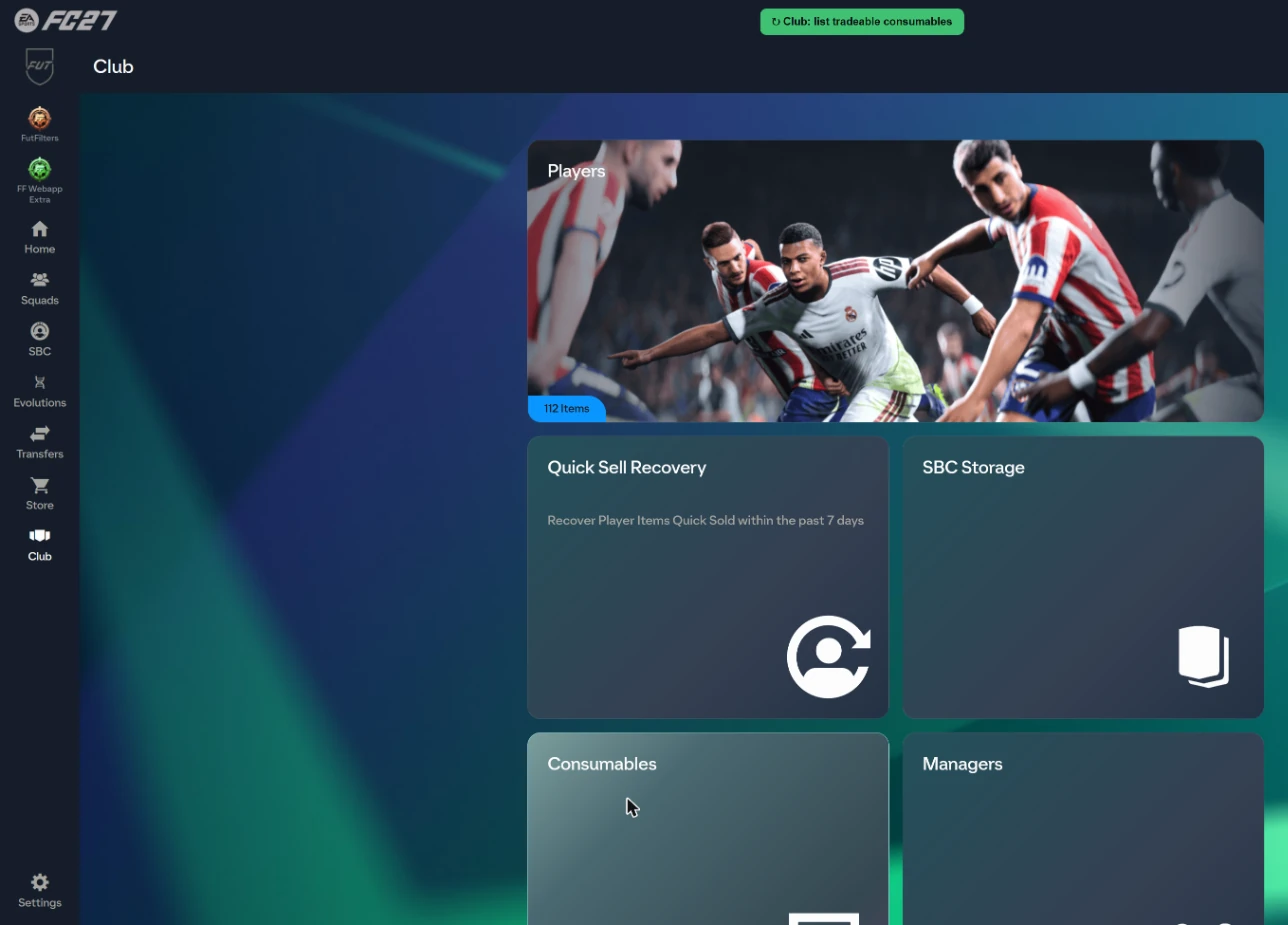
- Club: list tradeable consumables at the market price
- Adds a button on My Club > Consumables: it scans every consumable stack of the club (Chemistry Styles, Manager Leagues, Healing ...) and shows the tradeable ones in a table with the market price (the futfilters.com price for Chemistry Styles and Manager Leagues, the lowest Buy Now on the Transfer Market for the rest), the start / Buy Now price after your % adjustment and how many units of each stack to list (all by default). Nothing is listed until you press "List selected"; units are listed one by one with the same call as EA's "List on Transfer Market". Default: on.
- Transfer List: section totals (Bid / Buy Now / FutFilters price)
- Adds a "TOTAL" row under the header of every Transfer List section (Sold, Unsold, Available, Active): the total bid, the total Buy Now and the total futfilters.com database price of the players in that section. Read-only, it does not move EA's rows.
- Transfer List: Unsold / Available as a compact grid
- On the Transfer List page shows the Unsold Items and Available Items sections as a grid of cards, five per row, with the item name under each card and without prices and arrows. Click a card to select it as usual. Sold Items and Active Transfers keep their normal list. Default: on.
- Transfer List: Quick Sell / Send to Club buttons for Unsold and Available
- Adds buttons next to the Unsold Items and Available Items titles: "Quick Sell all" (EA asks for confirmation first; players with a market price above 1,000 are left out), "Send all to Club" and "Send players to Club" (players only). They act on the whole section with EA's own calls and messages; duplicates that cannot be moved are left out. Default: on.
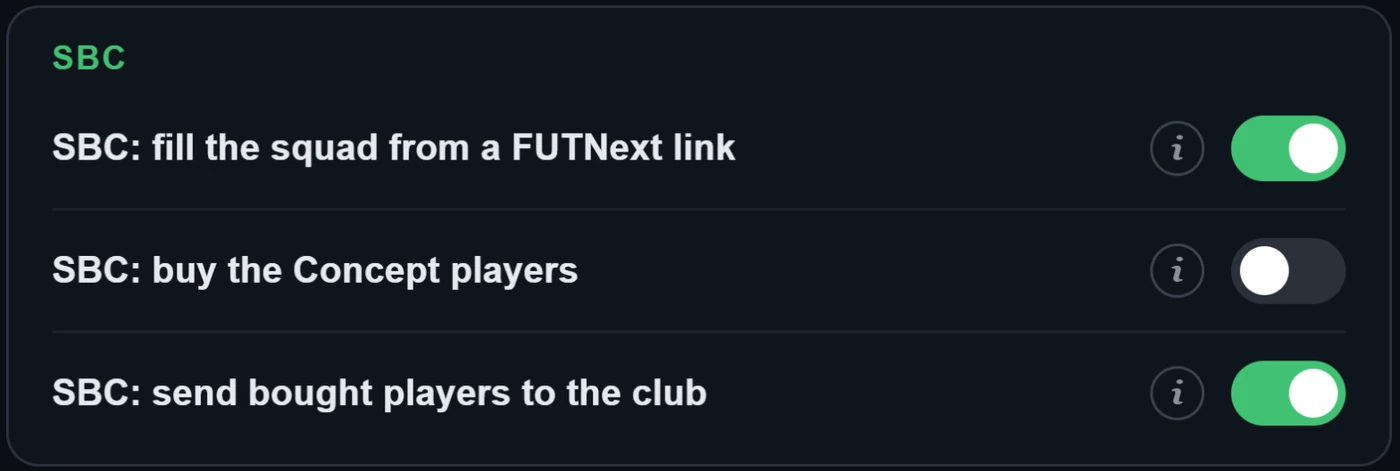
- SBC: fill the squad from a FUTNext link
- Adds a "FUTNext" box under the "Clear Squad" button of an SBC squad page. Paste a FUTNext link (futnext.com?sbcId=…&players=…) or just the list of player IDs and the squad is filled at once: first with the cards you own in your club, and with Concept players (EA's placeholders for planning, they cannot be submitted) for the ones you do not have. The squad is saved, never submitted. Anything that cannot be found is listed. When futfilters.com has FUTNext's newest solutions for the challenge (collected every 6 hours), a dropdown under the box lists the 5 newest with their price and age: pick one and the squad is filled at once.
- SBC: send bought players to the club
- While you are inside an SBC (the squad page and its player searches), players you buy are moved to your club (Unassigned -> My Club) instead of the Transfer List. Players that were already waiting in Unassigned when you opened the SBC are left alone. The Autofill script stands down during an SBC so the two do not fight over the same player.
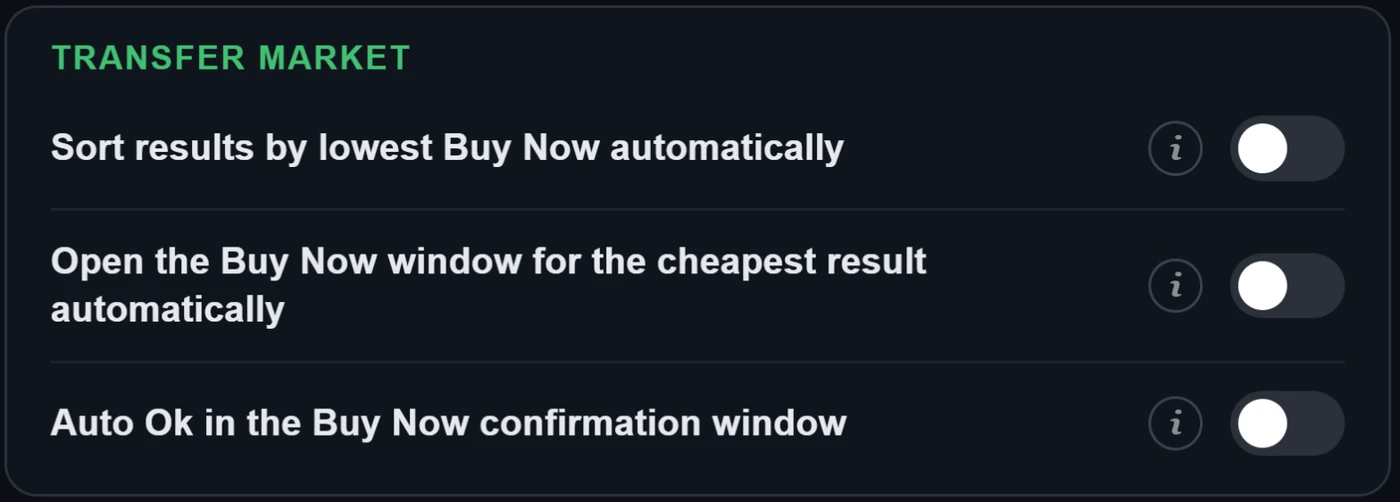
- Sort results by lowest Buy Now automatically
- Runs the "Sort results by lowest Buy Now" shortcut by itself every time a search result list (Transfer Market or SBC player search) appears or changes.
- Open the Buy Now window for the cheapest result automatically
- Selects the top player of the result list (the real cheapest if automatic sorting is on) and opens EA's own "Get Now" confirmation window by itself, like the "Buy now" shortcut. If "Auto Ok" below is off, the window stays with you.
- Auto Ok in the Buy Now confirmation window
- When ON it also presses Ok in the "Get Now" confirmation window and completes the purchase, both for the "Buy now" shortcut and for the automatically opened window. Full automation carries a high risk of an EA account ban. Default: off.
5. Transfer List and Club tools
What the Webapp Extra adds on EA's own pages. Nothing is listed or sold until you confirm.
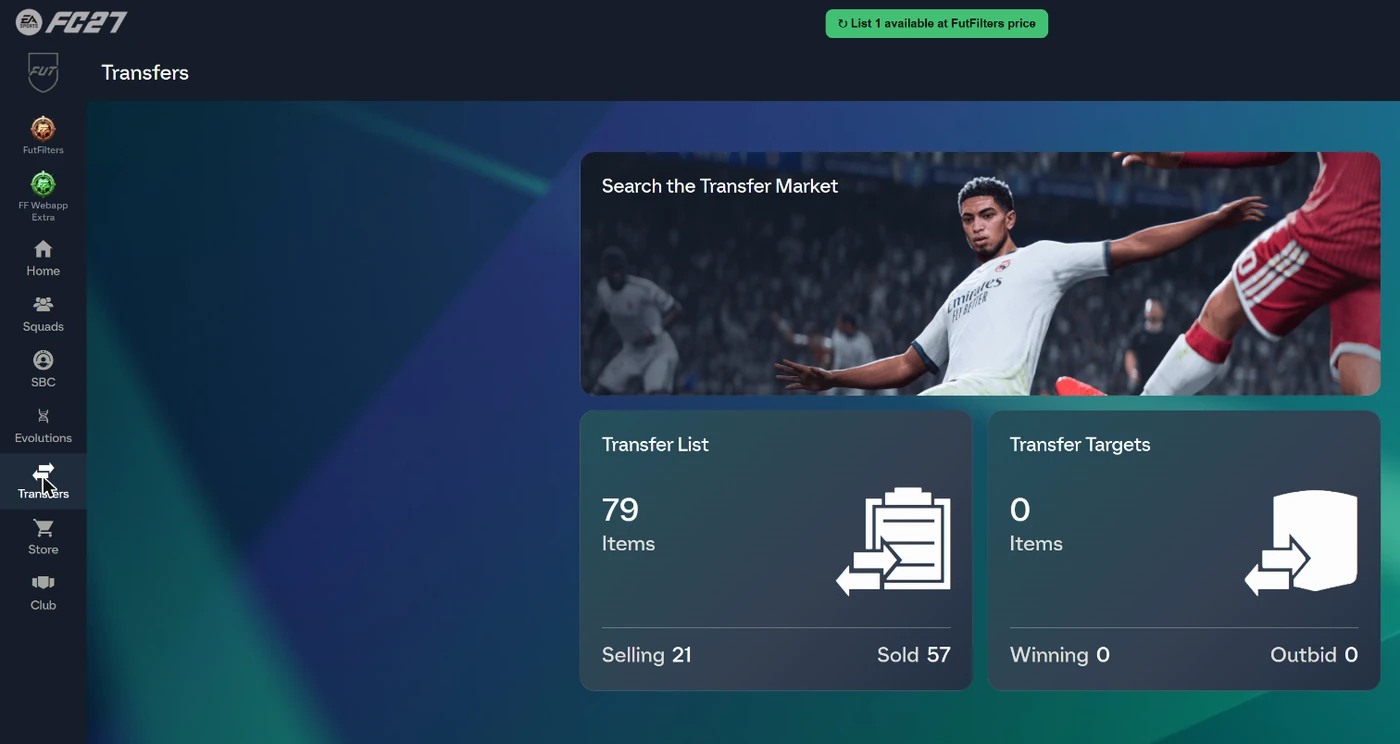
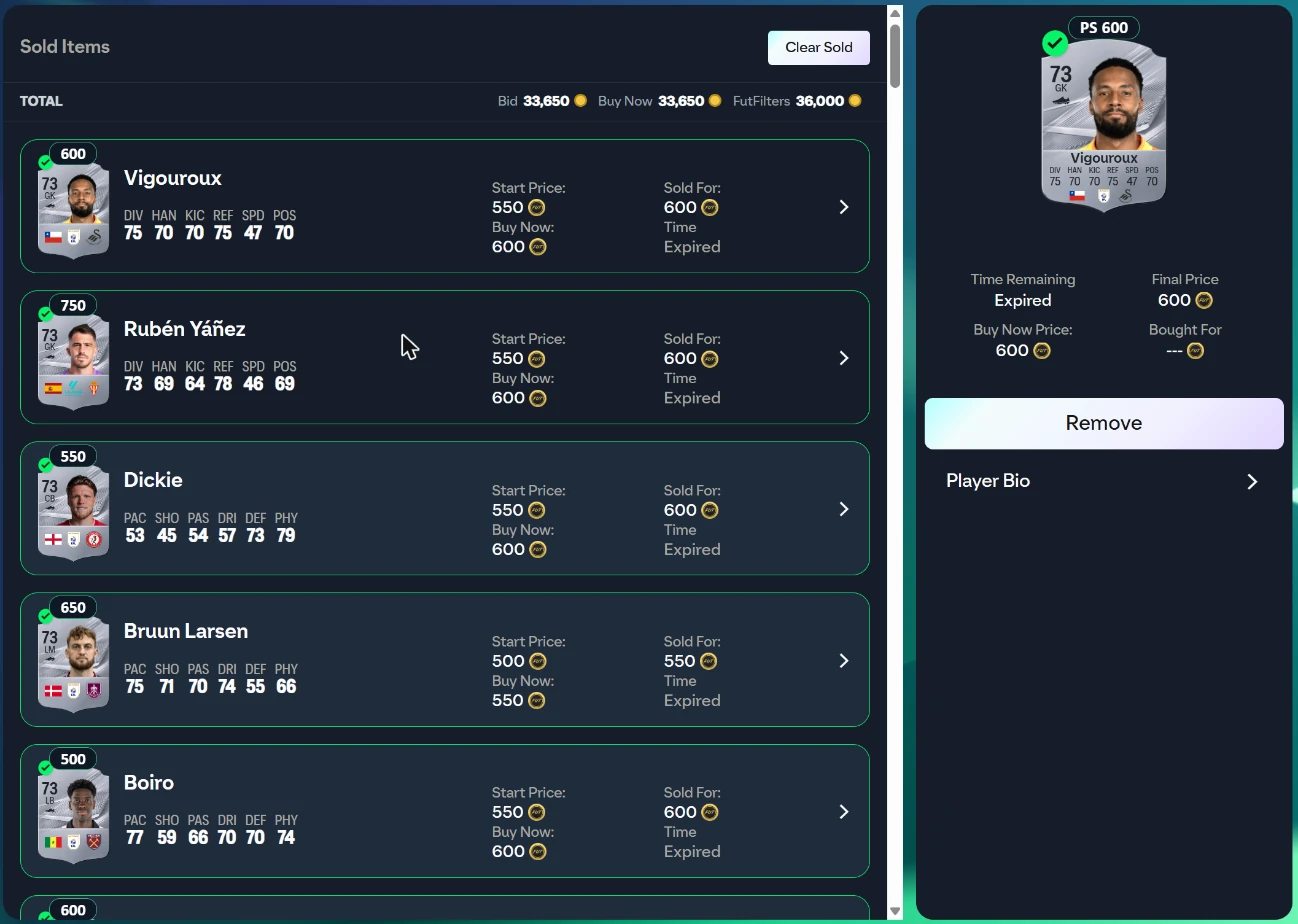
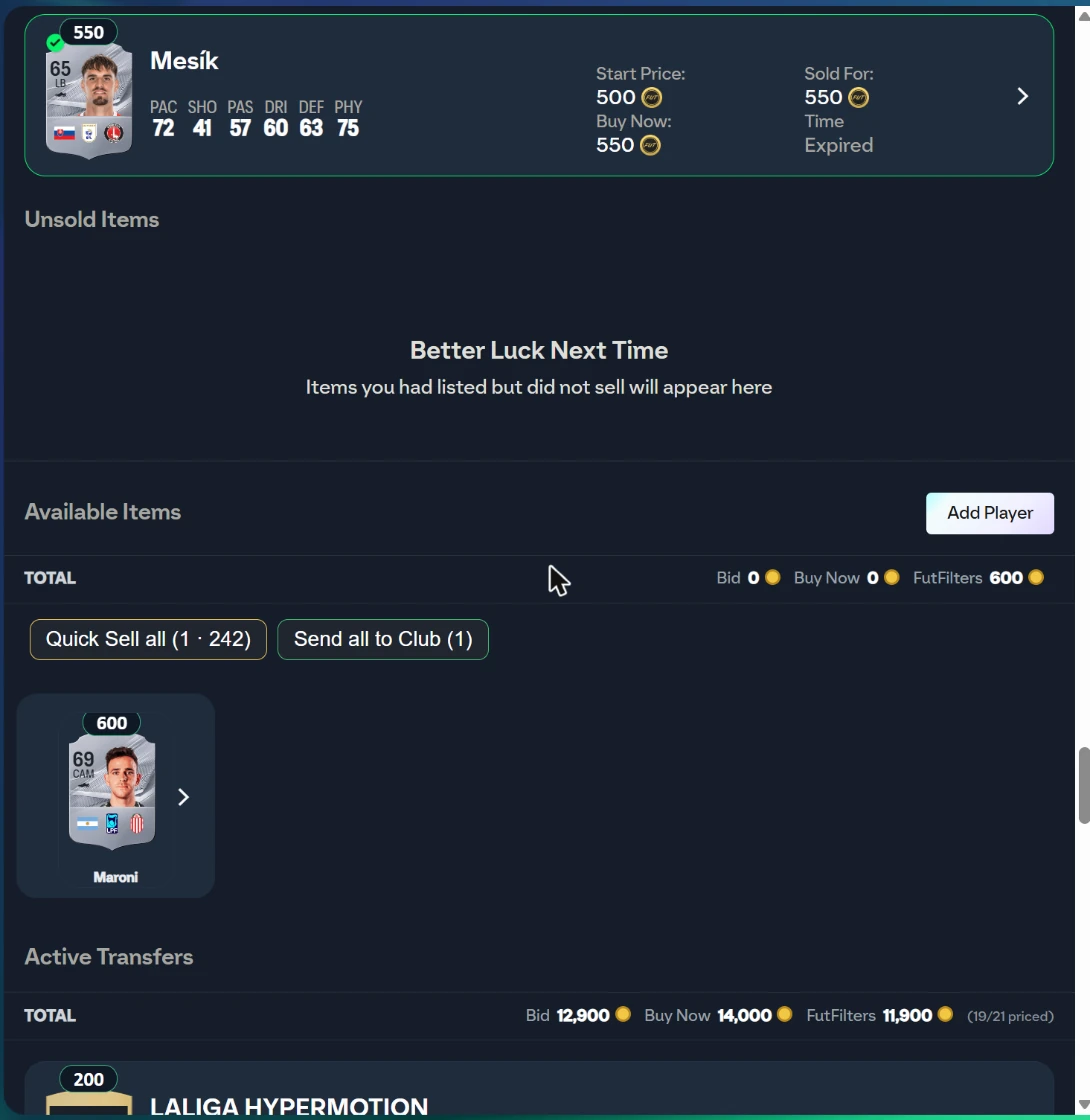
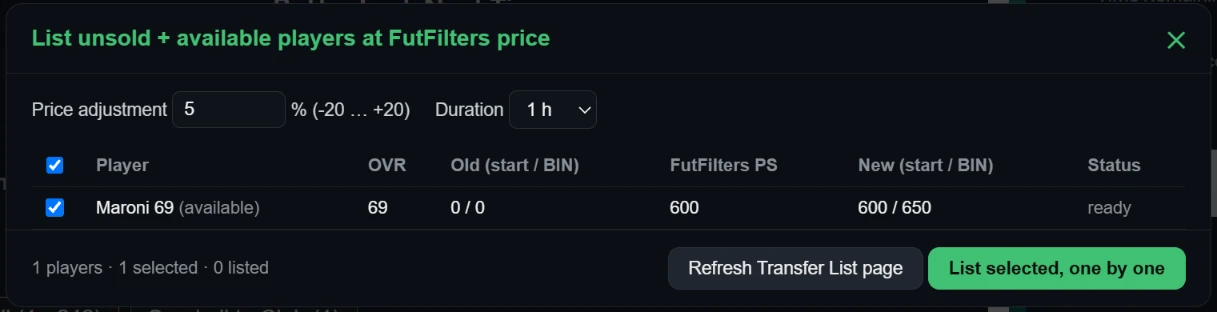
Adds a button on the Transfer List page for players that did not sell or are not listed: it lists each player one by one at the price in the futfilters.com player database, adjusted by the percentage you choose (-20 … +20, default +5) and rounded to EA's price step. Nothing is listed until you press "List selected"; a table is shown first. The same button also appears on the Unassigned page (after opening packs) for the tradeable players waiting there.

6. The autobuyer log
Every bought and missed player is sent to your log on futfilters.com with the estimated profit.
- Open it from the Settings panel ("Open the log on the website") or at futfilters.com/logs while signed in.
- Running several EA accounts or browsers? Give each one a short "Account name" in Settings so you can tell them apart in the log.
- Sessions: a new session starts every time you start Auto Search. The last 30 sessions are kept in the browser ("Previous sessions" in Settings).
- A missed purchase shows EA's own message as its reason, for example "Bid status changed" (someone else was faster) or "Too many actions" (EA's temporary limit).
- Sold cards from your Transfer List are logged too. The page shows "Sold" and "Realised profit" (sale price x 0.95 - what the card cost, read from the card itself) next to the estimated profit of the purchases.
Frequently asked questions
What is FutFilters, and what are the two helpers?
FutFilters (futfilters.com) is a database of Transfer Market snipe filters with live price data for EA FC. The FutFilters panel brings those filters into the EA FC Web App and fills in the search for you. FF Webapp Extra adds prices on cards and quality-of-life tools on the Transfer List, Club, SBC and pack screens.
Where do I find my API code?
On futfilters.com, signed in: "My Account" -> "API code". In the Web App open the FutFilters panel, press the gear icon, click the API code line, paste the code and press Save.
Which browser do I need?
A desktop Chromium browser (Chrome or Edge). Install the Chrome extension from the Chrome Web Store, or the userscript through Tampermonkey. Both live on the Downloads page.
The panel says "PC filters hidden". Why?
Your account is PlayStation / Xbox, and PC prices are a different market, so the helper only shows the filters that match your account's platform. A PC account sees the PC filters instead.
Does FutFilters buy players for me?
By default no: a click on a filter only fills in the search form. Auto Search repeats the search, and "Auto-click Buy Now" and "Auto-click Ok" can complete a purchase, but all of them are separate switches in Settings and the buying ones are off by default.
Can I get banned?
Automating purchases goes against EA's terms of service, so there is always a risk, and it grows with full automation (Auto-click Ok, Multi-buy, Automation). We cannot promise safety. Keep the buying switches off if you are unsure, keep Auto Search intervals random (the defaults are) and never leave the account unattended.
What does "Automation" do?
WHEN ON: when the Transfer List is 90% full Auto Search stops and the players in it are listed one by one at the FutFilters price for 1 hour (with the Relist % of FF Webapp Extra, +5% if you never set one). When listing is done the sales are checked periodically and sold items are cleared; when the number of free slots set below (default 15) is reached Auto Search starts again with the same filter. WARNING: this is full automation, it lists without anyone looking and is a risky way to use the helper; be careful before leaving it unattended. Players priced above the limit below are never listed automatically.
The Transfer List is full and Auto Search stopped.
That is intended: Auto Search stops when the Transfer List has no free slots, so a purchase cannot fail. List, sell or clear some items (the "List at FutFilters price" button helps) and start Auto Search again; with Automation on it resumes by itself at the number of free slots you set.
How many devices can I use?
Your account has a device limit (shown under "Device usage" in Settings). Switching to a different computer? You can reset it from your futfilters.com panel.
What does My filters auto-fill?
Auto-fill only sets: Country/Region, League, Quality, Rarity, Position and Buy Now Price Max. Club, chemistry style, rating and the other fields are NOT filled in automatically; set them yourself in the search form.
What is the price badge on the cards?
Adds the last price from the futfilters.com player database on top of every player card. A PlayStation / Xbox account shows only the PS price, a PC account only the PC price (green); if the platform cannot be read, both are shown. A faded price is older than 2 days; hover for the exact value, the EA floor and the date. It only appears on lists loaded after the script is switched on. Chemistry Styles, Managers and Manager Leagues get their price too (lowest listing, from fut.gg).
How does "List unsold + available players at FutFilters price" work?
Adds a button on the Transfer List page for players that did not sell or are not listed: it lists each player one by one at the price in the futfilters.com player database, adjusted by the percentage you choose (-20 … +20, default +5) and rounded to EA's price step. Nothing is listed until you press "List selected"; a table is shown first. The same button also appears on the Unassigned page (after opening packs) for the tradeable players waiting there.
What is Multi-buy?
1 (default): if a search shows several matches only the most profitable one is bought (profit by the FutFilters price: value x 0.95 - price). 2-5: up to that many players are bought in that search, one after another, most profitable first. The number counts Buy Now attempts and starts again with every new search; with a short Auto Search interval you may not get through all of them before the next search comes. WARNING: multi-buy is a risky way to use the helper; coins are spent on several players at once, you can exceed your budget and fill the Unassigned pile (5 items). Be careful when you use it.
Can I leave Auto Search running overnight?
Yes, but keep the browser awake: Chrome slows down a tab that is hidden, minimised or covered by another window. Since version 1.47.40 the helper's timers are protected against that, and these settings help too. 1) In Chrome open chrome://settings/performance and turn Memory Saver off, or add the EA Web App site (www.ea.com) to "Always keep these sites active" (on a laptop also turn Energy Saver off and keep it plugged in). 2) Do not minimise the window and do not cover it with another window; do not let the screen or the computer go to sleep (Windows: Settings > System > Power). 3) Use one browser profile per EA account. 4) The Transfer List needs free slots (switch Automation on and it lists and resumes by itself). 5) Next morning check the session log: a long session should show many searches (about 10-20 a minute at the default interval); only a few means the tab was throttled. Overnight use without supervision raises the ban risk, see "Can I get banned?".
What does the Filter test do?
It searches a filter about 8 times without buying anything and shows how many listings the market has at the filter's Max Buy and at nearby prices, their prices and the estimated profit, then suggests a better Max Buy if the market has moved. Click the flask icon on a filter row; "Copy to My filters" in the result saves the filter at the suggested price.
Auto Search paused with "Too many actions". What is that?
EA answers "Too many actions have been taken, and use of this feature has been temporarily disabled" when an account does too much on the Transfer Market, and then refuses searches and purchases for a while. In Settings you can set a number of minutes (0 = off): when the message is seen more than 5 times within the last 20 searches, Auto Search stops for that long and then carries on by itself with the same filter.
What is the "Realised profit" in the log?
Every card sold from your Transfer List is logged. The realised profit is the sale price x 0.95 (EA's tax) minus what the card cost, which the helper reads from the card while it is still unsold. The estimated profit next to each purchase is a guess from our price catalog; the realised profit is what really happened.
Why does a filter's Max Buy change by itself?
Max Buy is the filter's market price minus EA's 5% tax and a 10% margin. When several accounts run the Filter test and agree that no listings can be found at that price while enough profitable ones exist a little higher, FutFilters lowers that filter's margin to between 5% and 10% for 24 hours, and the filter shows a gear icon. The change is small (two percentage points at a time), only applied while the filter still returns a profit, and fades out by itself unless new tests confirm it. If you picked a smaller discount yourself in the site's Snipe profit selector, the smaller one is used.
Can I run several EA accounts?
Yes, each browser profile keeps its own settings. Shown next to this browser's events and warnings in the Autobuyer log, so you can tell your accounts apart when you run several. Left empty it uses the club name shown in the Web App (or a short code for this browser if that cannot be read). The name is sent to futfilters.com with the log events; if you prefer, type a short nickname instead.
The panel stopped working after an update.
Old versions are retired from time to time. If the panel shows that the script version is no longer supported, reinstall the latest version from the Downloads page (Tampermonkey does not auto-update it). The Chrome extension updates through the Web Store.
How do I change the panel language?
The panel's language. "Automatic" follows the language on your futfilters.com account; pin it here to match your EA Web App's language -- no need to visit the website.
Where is the SBC FUTNext box?
Adds a "FUTNext" box under the "Clear Squad" button of an SBC squad page. Paste a FUTNext link (futnext.com?sbcId=…&players=…) or just the list of player IDs and the squad is filled at once: first with the cards you own in your club, and with Concept players (EA's placeholders for planning, they cannot be submitted) for the ones you do not have. The squad is saved, never submitted. Anything that cannot be found is listed. When futfilters.com has FUTNext's newest solutions for the challenge (collected every 6 hours), a dropdown under the box lists the 5 newest with their price and age: pick one and the squad is filled at once.
I still have a question.
Open futfilters.com/support, or send a message from the Contact section of the site.